Manage your account

Manage your account


To get you all set up with going walletless, simply link up your credit/debit card. If you have a Link Card, link it to your CaltexGO account. This way, you can earn and redeem points directly through the app.


To get you all set up with going walletless, simply link up your credit/debit card. If you have a Link Card, link it to your CaltexGO account. This way, you can earn and redeem points directly through the app.

Couple looking at a mobile phone together

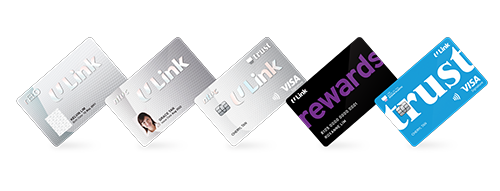
Using Link Rewards as Loyalty Program

Using Link Rewards as Loyalty Program

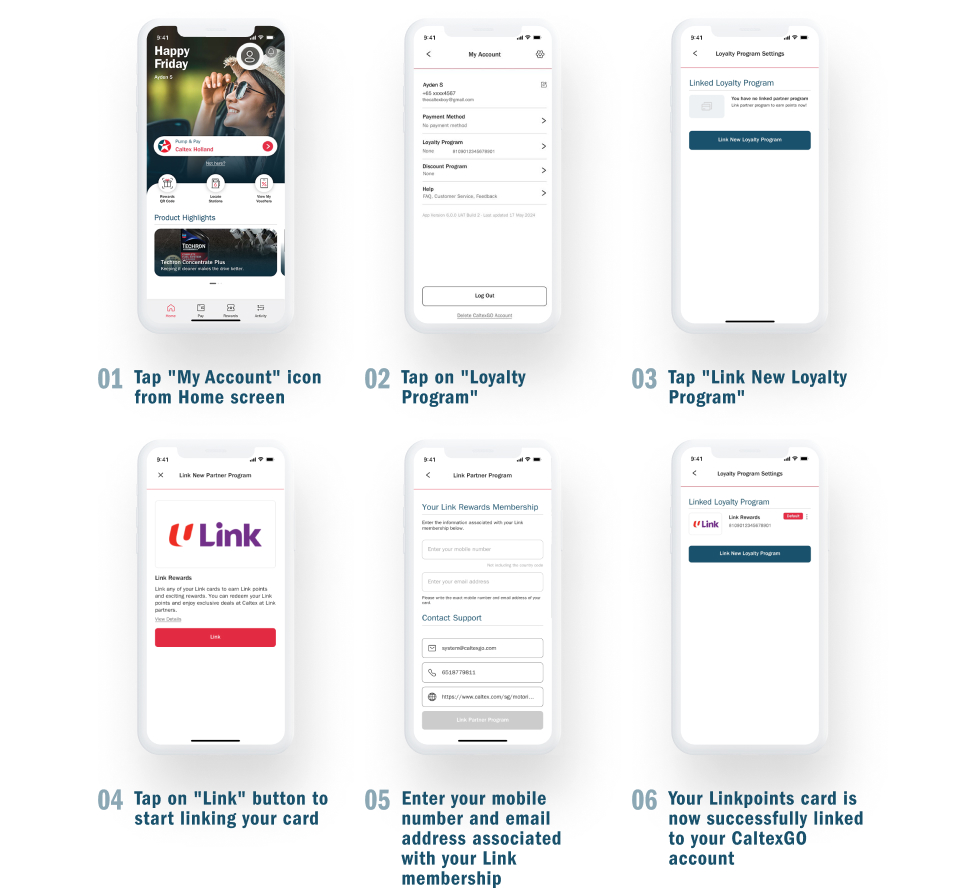
Tap " " icon on the CaltexGO home screen 
 

Step 1: Select Loyalty Program. Tap on "Link New Loyalty Program".


Step 2: Tap on "Link" to start linking your Link Rewards membership.


Step 3: Enter your mobile mobile and email address associated with your Link Rewards, tap "link" button at the bottom and you are done!


Tip! This link card will be used for future earning of loyalty points and redemption.


Tap " " icon on the CaltexGO home screen 
 

Step 1: Select Loyalty Program. Tap on "Link New Loyalty Program".


Step 2: Tap on "Link" to start linking your Link Rewards membership.


Step 3: Enter your mobile mobile and email address associated with your Link Rewards, tap "link" button at the bottom and you are done!


Tip! This link card will be used for future earning of loyalty points and redemption.


Back to How CaltexGO Works
CaltexGO app rewards summary page

Using credit card/ debit card as Payment Method

Using credit card/ debit card as Payment Method

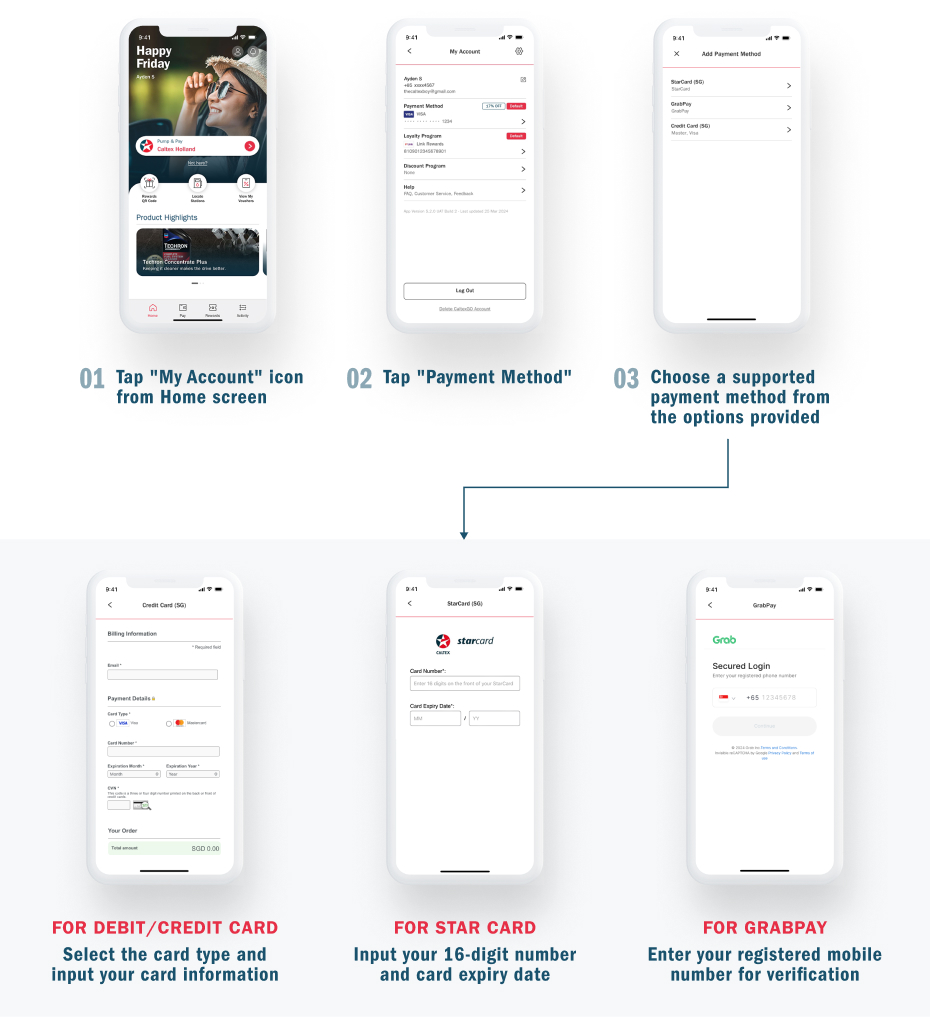
Tap " " icon on the CaltexGO home screen 
 

Step 1: Select Payment Method. Tap on Add Payment Methods.


Step 2: Enter your Email Address


Step 3: Select the credit card type as your payment method: Visa or Mastercard


Step 4: Enter your Card Number; Expiry month and year; CVN and click on the "Save" button at the bottom, and you're done!


Tip! You may choose to set this card as primary for future transactions.


Tap " " icon on the CaltexGO home screen 
 

Step 1: Select Payment Method. Tap on Add Payment Methods.


Step 2: Enter your Email Address


Step 3: Select the credit card type as your payment method: Visa or Mastercard


Step 4: Enter your Card Number; Expiry month and year; CVN and click on the "Save" button at the bottom, and you're done!


Tip! You may choose to set this card as primary for future transactions.


Back to How CaltexGO Works

CaltexGO app rewards summary page

An electronic receipt for all CaltexGO transactions will be delivered to your registered email address.

Yes. You are required to confirm your email address before using CaltexGO for mobile payment.

Caltex takes user security seriously, which is why you are sent a one-time security code by SMS to validate credit card selection when you first set up your preferred payment card.

You can request to have another authorization SMS sent. If you still do not receive the SMS after a few minutes, please contact your issuing bank for clarification.

Try removing the credit card details from the app and adding it again, double-checking to ensure all required information has been entered correctly.


If you continue to receive a payment error, contact your bank to verify that your payment account is active and verified internationally.

You can retrieve your NTUC Link Rewards membership account and phone number through the "FairPrice Group" app. Please also ensure that these details are verified on the "FairPrice Group" app. Alternatively, you may contact NTUC Link customer service at 63805858.

Any device running on Apple iOS 12/Android 5.1.1 or later.

CaltexGO is available on Apple and Google Play App stores.

Yes. You need to register to create a CaltexGO account to enjoy the mobile app features. If you have yet to do so, follow the on-screen prompts.

Yes.

Yes. You can purchase both Petrol and Diesel.

No. CaltexGO is currently limited to fuel purchases.

A 4G or better signal is required to use the mobile payment service. Remember to check that your GPS is connected, or ‘Location Services’ has been enabled.


If you’re still having trouble with your service signal, you can always pop into the shop and pay for fuel, as usual. 

Like most apps, CaltexGO uses your smartphone’s location services and internet data. Costs vary depending on your network provider and mobile phone plan. Contact your mobile service provider for more information.

No

CaltexGO only uses the location services in your mobile’s native operating system when the app is running to determine your Mobile Pay location. The app will not be able to determine your location if it is not open.

Caltex uses a variety of security technologies and procedures for storing and securing personal information and complies with applicable data privacy regulations.


We work with our service providers and vendors (such as payment processers and fraud prevention services) to ensure that each of them maintains appropriate physical, technical and infrastructural security measures to secure your personal data.


For example, an SMS verification code, as well as an email confirmation link, is sent to the user when first setting up the CaltexGO Mobile Pay account, for added security. Users are advised to assign a security passcode to protect your personal data on your phone.

Yes, you can log in to your CaltexGO account from another device provided the transaction is still available. Alternatively, you can go in-store to make a payment.

You must immediately notify the CaltexGO Support Team via SGsupport@caltexgo.com to request CaltexGO account cancellation or temporary suspension.

Please contact your bank immediately if you suspect your card has been used in an unauthorized manner.


You must also contact CaltexGO Support Team immediately via SGsupport@caltexgo.com to report this issue. Otherwise, you will have to bear the cost of any transactions made prior to the notification.

Please email the CaltexGO Support Team via SGsupport@caltexgo.com

Send us your queries via our Feedback Form.

CaltexGO mobile payments are accepted across all Caltex service stations in Singapore.

Download the CaltexGO app and use the “Mobile Pay” option to pay for fuel. If a discount is applicable, it will be automatically applied and displayed on the payment confirmation screen once you have entered the pump number.

Not yet. You can continue to use your Safra and Cabbie 21 cards in-store.

After you have completed refuelling, slide to the right pump number and tap "Continue". Redeem your Linkpoints for fuel by selecting "Use Link Rewards Points." and selecting the amount of Linkpoints you would like to redeem.

Updates will be processed within 48 hours of your transaction.

If you have not paid for the transaction, tap the "Back" button to reselect the correct pump number. If issues persist, please proceed to the cashier in-store to settle the transaction in person.

You have 90-seconds to complete a Mobile Pay transaction before it is time-out. If you need more time, please proceed to the cashier in-store to complete the transaction.

No. You will receive a digital receipt in the CaltexGO app, as well as an electronic receipt in the form of a tax invoice via your registered email address.

No. CaltexGO’s Mobile Pay is limited to fuel purchases.

Your past transaction receipts can be viewed at any time via the CaltexGO app. To view a past transaction, log in to your app account and select ‘Activity'. Your receipts will be organized by date, with your most recent transaction at the top of the list. Tap "See all" and select the transaction to display details.


For a tax invoice receipt, refer to your registered email account. Remember to check your junk folder for <receipt@caltexgo.com> if you cannot find them.

Fuel prices are displayed at each pump island dispenser.

In this unlikely event, you will still be required to pay for any fuel dispensed into your vehicle in-store prior to leaving the Caltex station. If this occurs, please seek help from Caltex at SGsupport@caltexgo.com

As fuel has been dispensed you are liable for payment. Please proceed in-store to settle the payment.


Caltex reserves the right to refer the matter to the local police authority in the event transactions carried out via the CaltexGO account appear suspicious or indicates numerous declined transactions.

A ‘Preview Payment’ screen will prompt you to verify your transaction before you proceed to pay. You will see a ‘Payment Success’ screen to confirm payment has been made. You may only leave the site once you see this screen.

Car headed towards sunset