




Grab Drivers using CaltexGO

Grab Drivers using CaltexGO


Getting started with the CaltexGO for Grab Drivers program is simple and rewarding. Follow these easy steps to activate your exclusive partner discount and enjoy a seamless fueling experience.

 

Getting started with the CaltexGO for Grab Drivers program is simple and rewarding. Follow these easy steps to activate your exclusive partner discount and enjoy a seamless fueling experience.
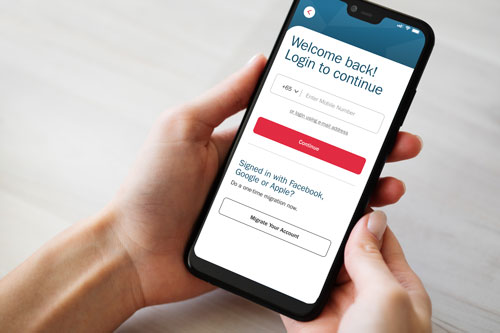
Grab driver app

Existing CaltexGO users step-by-step guide:

To access your past transaction history, log in using the email address you are previously used on CaltexGO. You can find this email under the "My Profile" tab in the previous version. 
 

*Unexpected issues or a high volume of requests could lead to a longer processing time of up to 3 days.

qr code to download caltexgo

01

Existing CaltexGO users can download the new CaltexGO app
login screen on caltexgo

02

Login using email address

Followed by Create an account password.

grab active

03

Grab Drivers activation

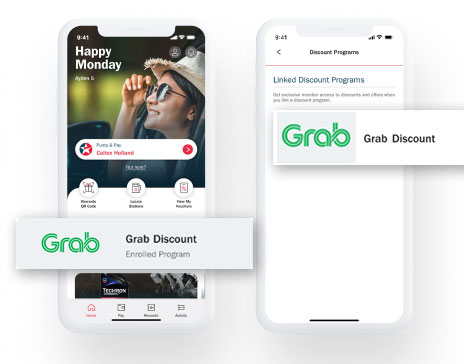
The Grab discount will appear in-app when it is ready for use, and can start enjoying the Grab discount benefit. This may take up to 1 day*.

04

Fuel up and save

Use the CaltexGO app to pay for your fuel at any Caltex station. With every fuel purchase, you'll enjoy exclusive partners discount, providing you with greater savings at Caltex.

New to CaltexGO step-by-step guide:

qr code to download caltexgo

01

New CaltexGO users can download the new CaltexGO app and tap "Sign Up"
login screen on caltexgo

02

Enter mobile number and verify with OTP

Next, verify your email and complete your profile with your first name, last name, and birth date.

grab active

03

Grab Drivers activation

The Grab discount will appear in-app when it is ready for use, and can start enjoying the Grab discount benefit. This may take up to 1 day*.

04

Fuel up and save

Use the CaltexGO app to pay for your fuel at any Caltex station. With every fuel purchase, you'll enjoy exclusive partners discount, providing you with greater savings at Caltex.

Pay Using CaltexGO:

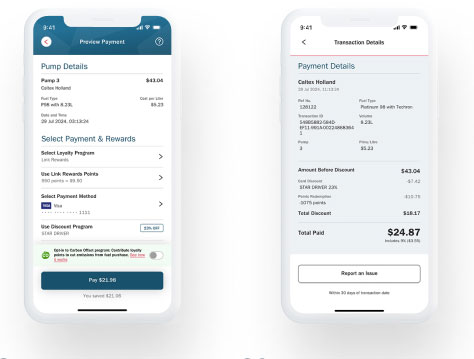
With CaltexGO, you no longer need to wait in line to pay for your fuel. Simply use the CaltexGO app to pay for your fuel transaction. This allows you to fuel up and go without any delays.

Vehicle fuel indicator on low

01

Turn on location services and tap on "Pump & Pay"
jurong caltex station

02

Slide to select pump number

Proceed to refuel your vehicle as usual. Once done, replace the pump nozzle.

Preview payment screen

03

Pay with your preferred payment method

Your fuel discount will reflected in the payment breakdown e-receipt. 

Pay at cashier

Pay at cashier

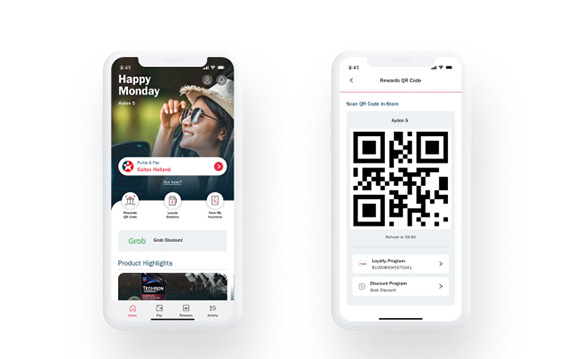
Alternatively, you can choose to pay in-store. Simply go inside the store and scan the "Rewards QR" code at the counter. This will apply your 29% Grab discount to your transaction.

Alternatively, you can choose to pay in-store. Simply go inside the store and scan the "Rewards QR" code at the counter. This will apply your 29% Grab discount to your transaction.

stardriver QR code

Usage of the Grab Discount Program does not entitle the user to Linkpoints.

Yes. the benefit will apply to all drivers successfully registered on the CaltexGO app.

This is an exclusive programme and unfortunately, we will not be able to provide appeals.Kindly note that driver-partners who are currently suspended will not be eligible for this discount until further notice.

If your fleet partner is one of Grab Recommended Fleet Partners, they will be contacting you soon. If not, please reach out to them for more details.

Please contact Grab via the Grab Driver App Help Centre under the article "I cannot redeem GrabBenefit".

You may refer to the Grab Discount Program information that can be found https://www.grab.com/sg/caltex-fuel-discount/

Any other on-going promotions, credit card discounts, offers, vouchers, rebates or privileges on CaltexGO cannot be used in conjunction with Grab Discount (unless otherwise stated).

You can download and install the app from App Store (for iOS devices) or Google Play Store (for Android devices). Simply search for the app name – select it and tap “Install”.

To create an account, download the app, open it, and follow the on-screen instructions to sign up using your mobile number and email address.

After entering the mobile number, tap “Forgot Password” and follow the instructions to reset your passwords via mobile and email.

Go to the “My Account” (profile picture icon) and select “Setting” (Gear Icon), select “manage Notifications” under System and toggle the switch to enable push notifications. You may also need to adjust your device’s notification settings, .

Yes. We take your privacy and security seriously. Our app uses encryption and other security measures to protect your personal information. Please refer to our Privacy Policy for more details.

To delete your account, go to the “My Account” section and choose “Delete CaltexGo Account”. Follow the prompts to confirm deletion. Note that this action is irreversible

You can contact customer support by

  • Email:
  • Phone number:
  • You can provide feedback through the “feedback” section in the app.

The higher discount program will take precedence, so you'll receive the Grab discount

  • Credit and debit card payments: Visa and MasterCard.
  • Caltex StarCard (Personal)
  • GrabPay

You can register a maximum of 2 credit cards.

Yes. But only StarCard (Personal) is currently accepted by CaltexGO. For Fleet card customers, you may continue to use StarCard in-store.

Not yet. Only Visa and MasterCard payment cards, GrabPay and StarCard (Personal) are currently accepted by CaltexGO. You are welcome to go in-store to redeem your StarCash gift card.

Enable your GPS or “Location Services” in your phone’s settings to help identity your current Caltex station location. You can then use CaltexGO’s Mobile Pay for fuel payment.

Log in to your app account, and tap on ‘Payment’. You may delete, add or update your credit card information.

Caltex does not see or store the details of your nominated payment cards. Such details are collected, stored and processed by Caltex's payment service provider, which processes payments via CaltexGO.

CaltexGO mobile payments are accepted across all Caltex service stations in Singapore.

Download the CaltexGO app and use the “Mobile Pay” option to pay for fuel. If a discount is applicable, it will be automatically applied and displayed on the payment confirmation screen once you have entered the pump number.

Not yet. You can continue to use your Safra and Cabbie 21 cards in-store.

After you have completed refuelling, slide to the right pump number and tap "Continue". Redeem your Linkpoints for fuel by selecting "Use Link Rewards Points." and selecting the amount of Linkpoints you would like to redeem.

Updates will be processed within 48 hours of your transaction.

If you have not paid for the transaction, tap the "Back" button to reselect the correct pump number. If issues persist, please proceed to the cashier in-store to settle the transaction in person.

You have 90-seconds to complete a Mobile Pay transaction before it is time-out. If you need more time, please proceed to the cashier in-store to complete the transaction.

No. You will receive a digital receipt in the CaltexGO app, as well as an electronic receipt in the form of a tax invoice via your registered email address.

No. CaltexGO’s Mobile Pay is limited to fuel purchases.

Your past transaction receipts can be viewed at any time via the CaltexGO app. To view a past transaction, log in to your app account and select ‘Activity'. Your receipts will be organized by date, with your most recent transaction at the top of the list. Tap "See all" and select the transaction to display details.


For a tax invoice receipt, refer to your registered email account. Remember to check your junk folder for <receipt@caltexgo.com> if you cannot find them.

Fuel prices are displayed at each pump island dispenser.

In this unlikely event, you will still be required to pay for any fuel dispensed into your vehicle in-store prior to leaving the Caltex station. If this occurs, please seek help from Caltex at SGsupport@caltexgo.com

As fuel has been dispensed you are liable for payment. Please proceed in-store to settle the payment.


Caltex reserves the right to refer the matter to the local police authority in the event transactions carried out via the CaltexGO account appear suspicious or indicates numerous declined transactions.

A ‘Preview Payment’ screen will prompt you to verify your transaction before you proceed to pay. You will see a ‘Payment Success’ screen to confirm payment has been made. You may only leave the site once you see this screen.

An electronic receipt for all CaltexGO transactions will be delivered to your registered email address.

Yes. You are required to confirm your email address before using CaltexGO for mobile payment.

Caltex takes user security seriously, which is why you are sent a one-time security code by SMS to validate credit card selection when you first set up your preferred payment card.

You can request to have another authorization SMS sent. If you still do not receive the SMS after a few minutes, please contact your issuing bank for clarification.

Try removing the credit card details from the app and adding it again, double-checking to ensure all required information has been entered correctly.


If you continue to receive a payment error, contact your bank to verify that your payment account is active and verified internationally.

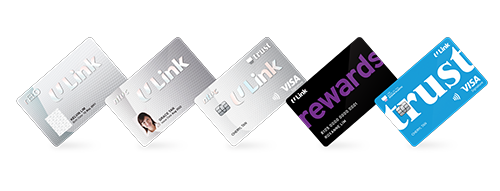
You can retrieve your NTUC Link Rewards membership account and phone number through the "FairPrice Group" app. Please also ensure that these details are verified on the "FairPrice Group" app. Alternatively, you may contact NTUC Link customer service at 63805858.

Car headed towards sunset