Register or Sign-in to your Account

Register or Sign-in to your Account


Set up a CaltexGO account and you’re all ready for digital payment and earn loyalty points, or choose to redeem Caltex Points anytime, anywhere.


Set up a CaltexGO account and you’re all ready for digital payment and earn loyalty points, or choose to redeem Caltex Points anytime, anywhere.

Couple looking at a mobile phone together

New to CaltexGO or Caltex Rewards

New to CaltexGO or Caltex Rewards

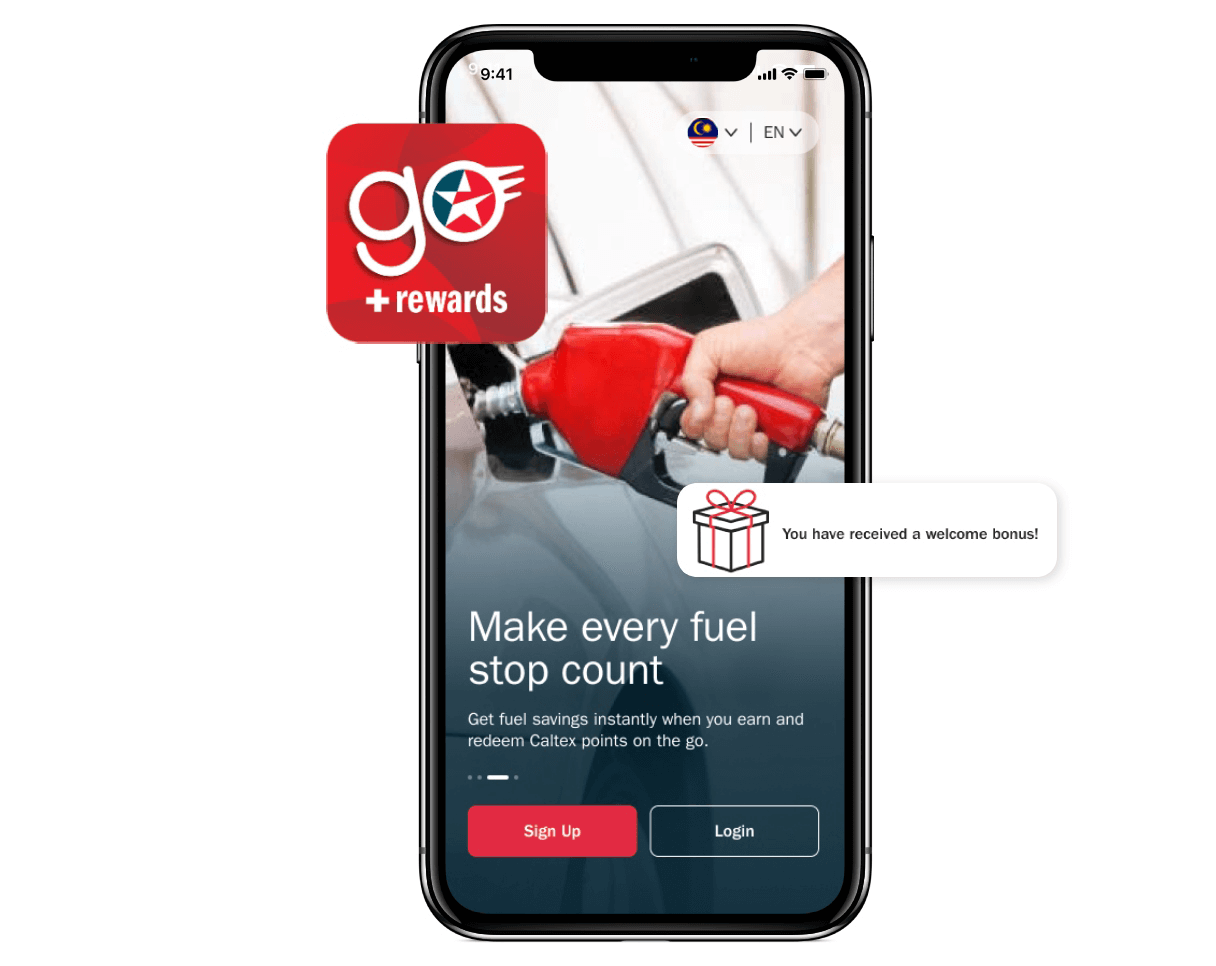
Tap "Sign Up" on the CaltexGO welcome screen


Step 1: Enter your Mobile Number. A one-time passcode (OTP) will be sent to your mobile as verification.


Step 2: Enter your Email Address. A one-time passcode (OTP) will be sent to your email address as verification. This will be used to receive transaction/ service related updates from Caltex.


Step 3: Set up your CaltexGO password. You will be using this password to login to your CaltexGO account in future.


Step 4: Enter your First Name, Last Name, and Birth Month & Year.


Yes! You have completed your registration. A welcome bonus will be awarded to you.

 

Tap "Sign Up" on the CaltexGO welcome screen


Step 1: Enter your Mobile Number. A one-time passcode (OTP) will be sent to your mobile as verification.


Step 2: Enter your Email Address. A one-time passcode (OTP) will be sent to your email address as verification. This will be used to receive transaction/ service related updates from Caltex.


Step 3: Set up your CaltexGO password. You will be using this password to login to your CaltexGO account in future.


Step 4: Enter your First Name, Last Name, and Birth Month & Year.


Yes! You have completed your registration. A welcome bonus will be awarded to you.

 

CaltexGO app sign up page

Existing CaltexGO/ Caltex Rewards Customer

Existing CaltexGO/ Caltex Rewards Customer

Already using CaltexGO app previously?
Already sign up as Caltex Rewards (either at Caltex Station or Online)?
 
Tap "Login" on the CaltexGO welcome screen


Step 1: Login to your account with either Mobile Number or Email Address.An one-time passcode (OTP) will be sent for verification. Then follow the rest of the steps to complete your profile.


Step 2: Set up yourCaltexGO password. You will be using this password to login to your CaltexGO account in future.


Step 3: Enter your First Name, Last Name and Birth Month & Year.


Tap "Done" and to complete your account migration.


Already using CaltexGO app previously?
Already sign up as Caltex Rewards (either at Caltex Station or Online)?
 
Tap "Login" on the CaltexGO welcome screen


Step 1: Login to your account with either Mobile Number or Email Address.An one-time passcode (OTP) will be sent for verification. Then follow the rest of the steps to complete your profile.


Step 2: Set up yourCaltexGO password. You will be using this password to login to your CaltexGO account in future.


Step 3: Enter your First Name, Last Name and Birth Month & Year.


Tap "Done" and to complete your account migration.


CaltexGO app create password page
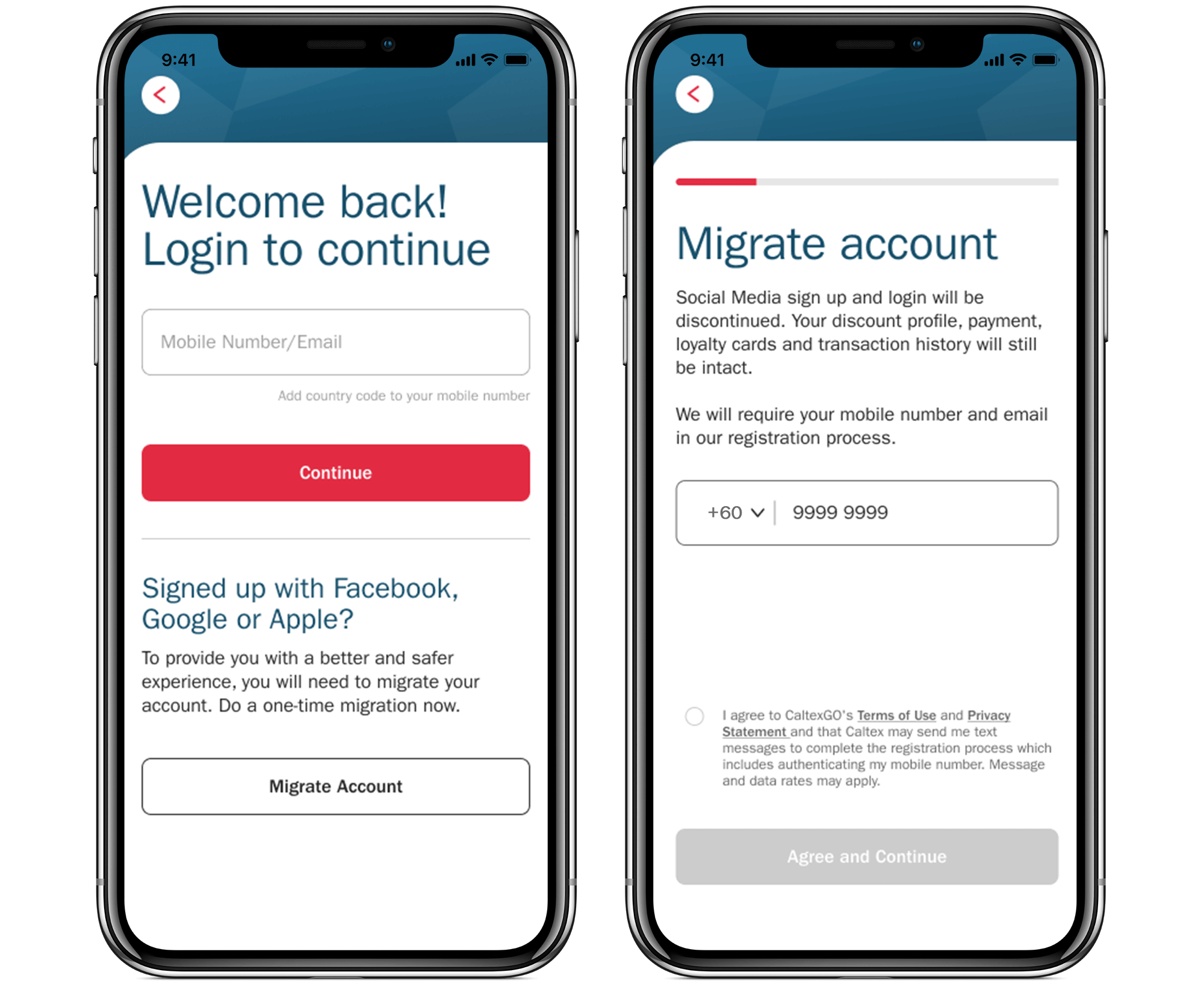
Tap "Migrate Account" on login screen if you are using either your Facebook, Google or Apple account previously


Provide your personal details such as email address, mobile number and password. All social media sign up and login will be discontinued. You will be using these details to login to your account in future.


Tap "Migrate Account" on login screen if you are using either your Facebook, Google or Apple account previously


Provide your personal details such as email address, mobile number and password. All social media sign up and login will be discontinued. You will be using these details to login to your account in future.


Back to How CaltexGO Works
CaltexGO app migrate account page

An electronic receipt for all CaltexGO transactions will be delivered to your registered email address.

Yes. You are required to confirm your email address before using CaltexGO for mobile payment.

Caltex takes user security seriously, which is why you are sent a one-time security code by SMS to validate credit card selection when you first set up your preferred payment card.

You can request to have another authorization SMS sent. If you still do not receive the SMS after a few minutes, please contact your issuing bank for clarification.

Try removing the credit card details from the app and adding it again, double-checking to ensure all required information has been entered correctly.


If you continue to receive a payment error, contact your bank to verify that your payment account is active and verified internationally.

Any device running on Apple iOS 12/Android 5.1.1 or later.

CaltexGO is available on Apple and Google Play App stores

Yes. You need to register to create a CaltexGO account to enjoy the mobile app features. If you have yet to do so, follow the on-screen prompts.

Yes. You can purchase both Petrol and Diesel.

No. CaltexGO is currently limited to fuel purchases at the participating Caltex stations.

A 3G or better signal is required to use the mobile payment service. Remember to check that your GPS is connected, or ‘Location Services’ has been enabled.


If you’re still having trouble with your service signal, you can always pop into the shop and pay for fuel, as usual.

Both credit and debit card payments are accepted: Visa and MasterCard.

You can register a maximum of 2 credit cards.

Not yet. Only Visa and MasterCard payment cards are currently accepted by CaltexGO. You may continue to use StarCard in-store or at the Outdoor Payment Terminal.

Not yet. Only Visa and MasterCard payment cards are currently accepted by CaltexGO. You are welcome to go in-store to redeem your StarCash gift card.

Enable your GPS or “Location Services” in your phone’s settings to help identity your current Caltex station location. You can then use CaltexGO’s Mobile Pay for fuel payment.

Log in to your app account, and tap on ‘Payment’. You may delete, add or update your credit card information.

Caltex does not see or store the details of your nominated payment cards. Such details are collected, stored and processed by Caltex's payment service provider, which processes payments via CaltexGO.

Car headed towards sunset