





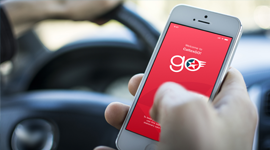





Keep up-to-date

Keep up-to-date


Keep up to date with app only offers, new partners' voucher, rewards points summary and more. Do not forget to turn on your notifications to get updates about exclusive member offers that are personalized to your needs.

 

Keep up to date with app only offers, new partners' voucher, rewards points summary and more. Do not forget to turn on your notifications to get updates about exclusive member offers that are personalized to your needs.

Lady using a mobile phone

Stay Connected with Caltex latest News

Stay Connected with Caltex latest News

Tap " " icon on the CaltexGO home screen 


Step 1: Go to Settings by tapping "".


Step 2: Tap on "Manage Notifications" under System


Step 3: Ensure you have turned on Promotions notification. You can choose your preferred communication channels, whether it will be via Text, Email, or Push Notification.


And you will never miss an update.

Tap " " icon on the CaltexGO home screen 


Step 1: Go to Settings by tapping "".


Step 2: Tap on "Manage Notifications" under System


Step 3: Ensure you have turned on Promotions notification. You can choose your preferred communication channels, whether it will be via Text, Email, or Push Notification.


And you will never miss an update.

Back to How CaltexGO Works
CaltexGO app rewards summary page

CaltexGO mobile payments are only available at selected Caltex service stations nationwide.

Download the CaltexGO app and use the “Mobile Pay” option to pay for fuel. If a discount is applicable, it will be automatically applied and displayed on the payment confirmation screen once you have entered the pump number.

If you have not paid for the transaction, tap the "Back" button to reselect the correct pump number. If issues persist, please proceed to the cashier in-store to settle the transaction in person.

You have 90-seconds to complete a Mobile Pay transaction before it is time-out. If you need more time, please proceed to the cashier in-store to complete the transaction.

You will receive a digital receipt in the CaltexGO app, as well as an electronic receipt in the form of a tax invoice via your registered email address. A paper receipt in store is available upon request.

No. CaltexGO’s Mobile Pay is limited to fuel purchases.

Your past transaction receipts can be viewed at any time via the CaltexGO app. To view a past transaction, log in to your app account and select ‘Transactions'. Your receipts will be organized by date, with your most recent transaction at the top of the list. Tap each transaction to display details.


For a tax invoice receipt, refer to your registered email account. Remember to check your junk folder for <receipt@caltexgo.com> if you cannot find them.

Fuel prices are displayed at each pump island dispenser.

In this unlikely event, you will still be required to pay for any fuel dispensed into your vehicle in-store prior to leaving the Caltex station. If this occurs, please contact our Customer Service Center at 1800 88 3188 or email to myhqcsc@chevron.com

As fuel has been dispensed you are liable for payment. Please proceed in-store to settle the payment.


Caltex reserves the right to refer the matter to the local police authority in the event transactions carried out via the CaltexGO account appear suspicious or indicates numerous declined transactions.

A ‘Pay Now’ screen will prompt you to verify your transaction before you proceed to pay. You will see a ‘Successful’ screen to confirm payment has been made. You may only leave the site once a “Payment Received” notification is displayed.

Yes, pre-authorization applies for both credit and debit card payment via CaltexGo app. For every fuelling transaction; full tank or specific amount, a temporary hold applied to both credit and debit card. This hold lasts for up to 5 business days and involves specific amount of the available balance of the card. For more information, please contact your respective issuer banks.

An electronic receipt for all CaltexGO transactions will be delivered to your registered email address.

Yes. You are required to confirm your email address before using CaltexGO for mobile payment.

Caltex takes user security seriously, which is why you are sent a one-time security code by SMS to validate credit card selection when you first set up your preferred payment card.

You can request to have another authorization SMS sent. If you still do not receive the SMS after a few minutes, please contact your issuing bank for clarification.

Try removing the credit card details from the app and adding it again, double-checking to ensure all required information has been entered correctly.


If you continue to receive a payment error, contact your bank to verify that your payment account is active and verified internationally.

Car headed towards sunset